 Thinkograf
Thirteen things, and a file you can commit.
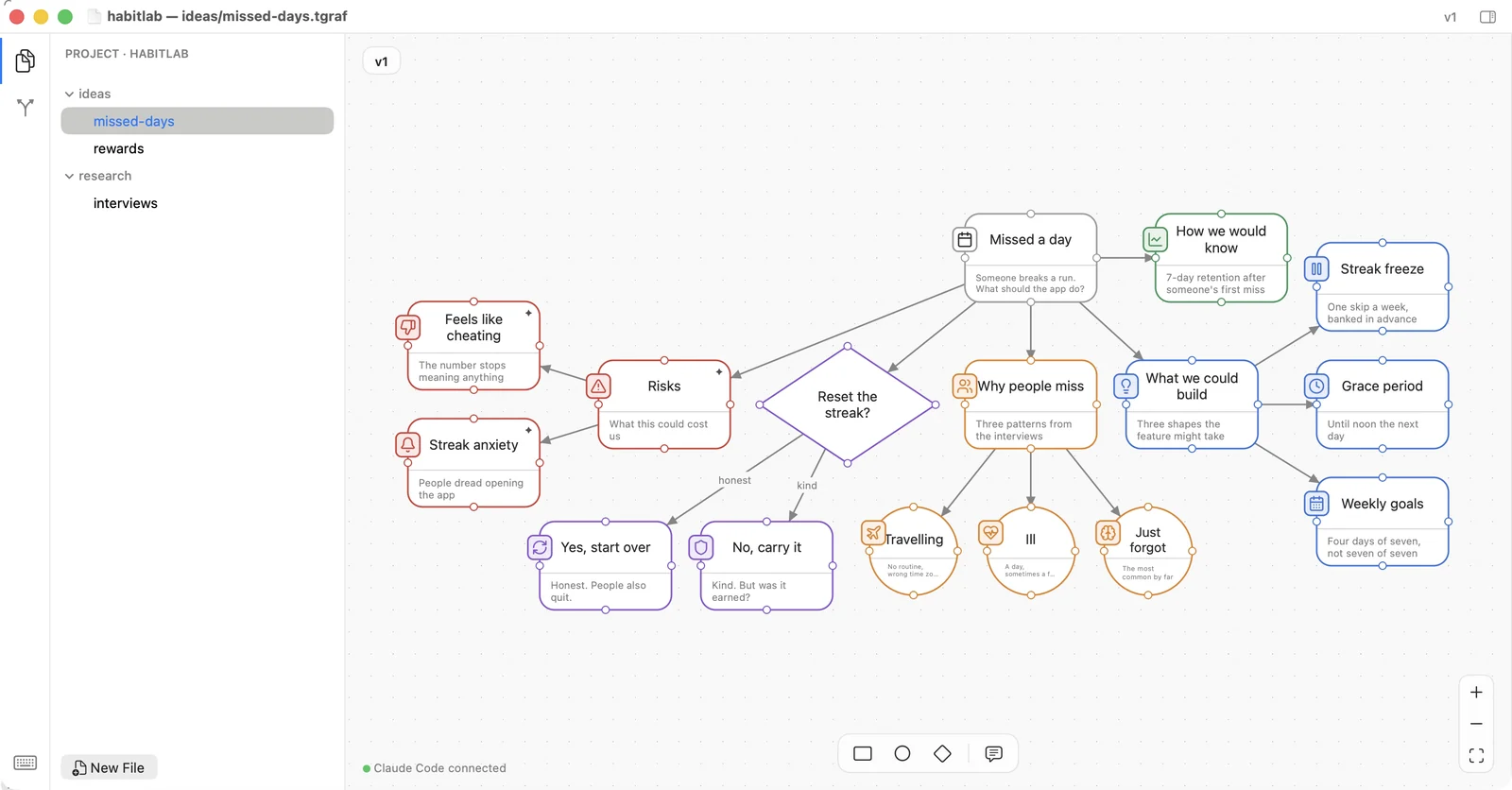
Every screenshot below is the shipping app at 0.1.20, photographed as it runs. Nothing here is a mock-up or a redraw.
Any MCP client, not one product.
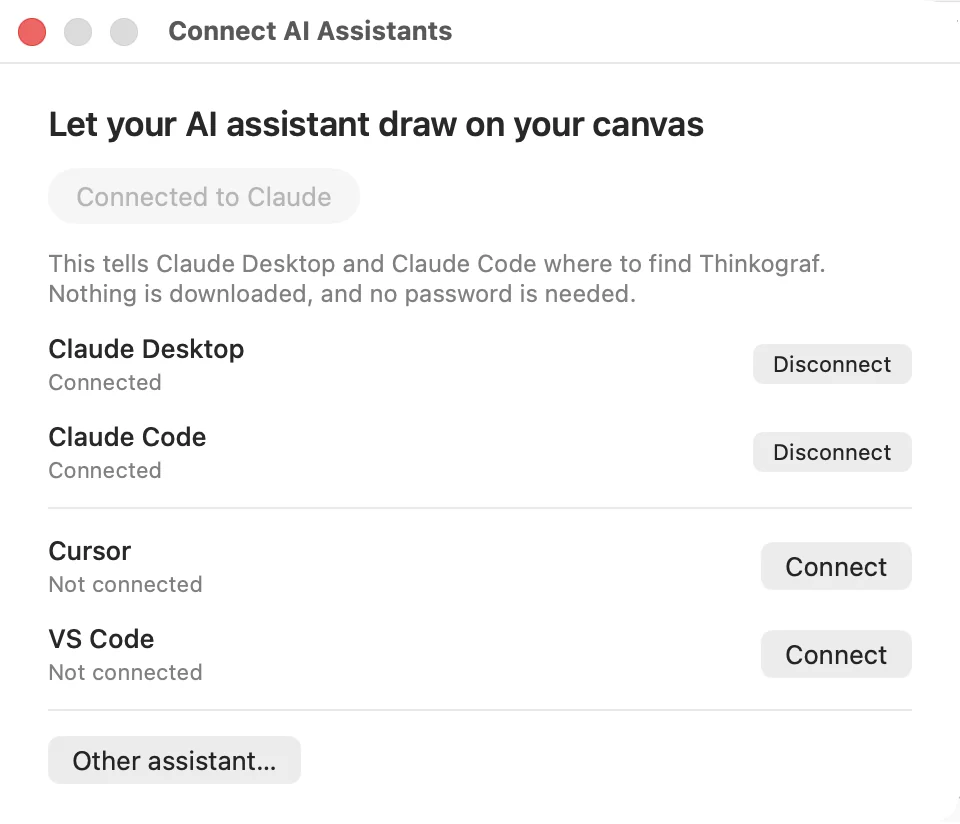
Thinkograf speaks MCP, so it works with whatever you already have open. Pick a client and it writes the server entry into that client’s own config — no JSON to paste, no path to find.
Your assistant draws, and you watch it happen.
Ask for the shape of a problem and it arrives as nodes and connections — the trunk first, then each branch in its own call. Nothing appears until a call finishes, so a diagram lands in readable pieces rather than one node at a time.
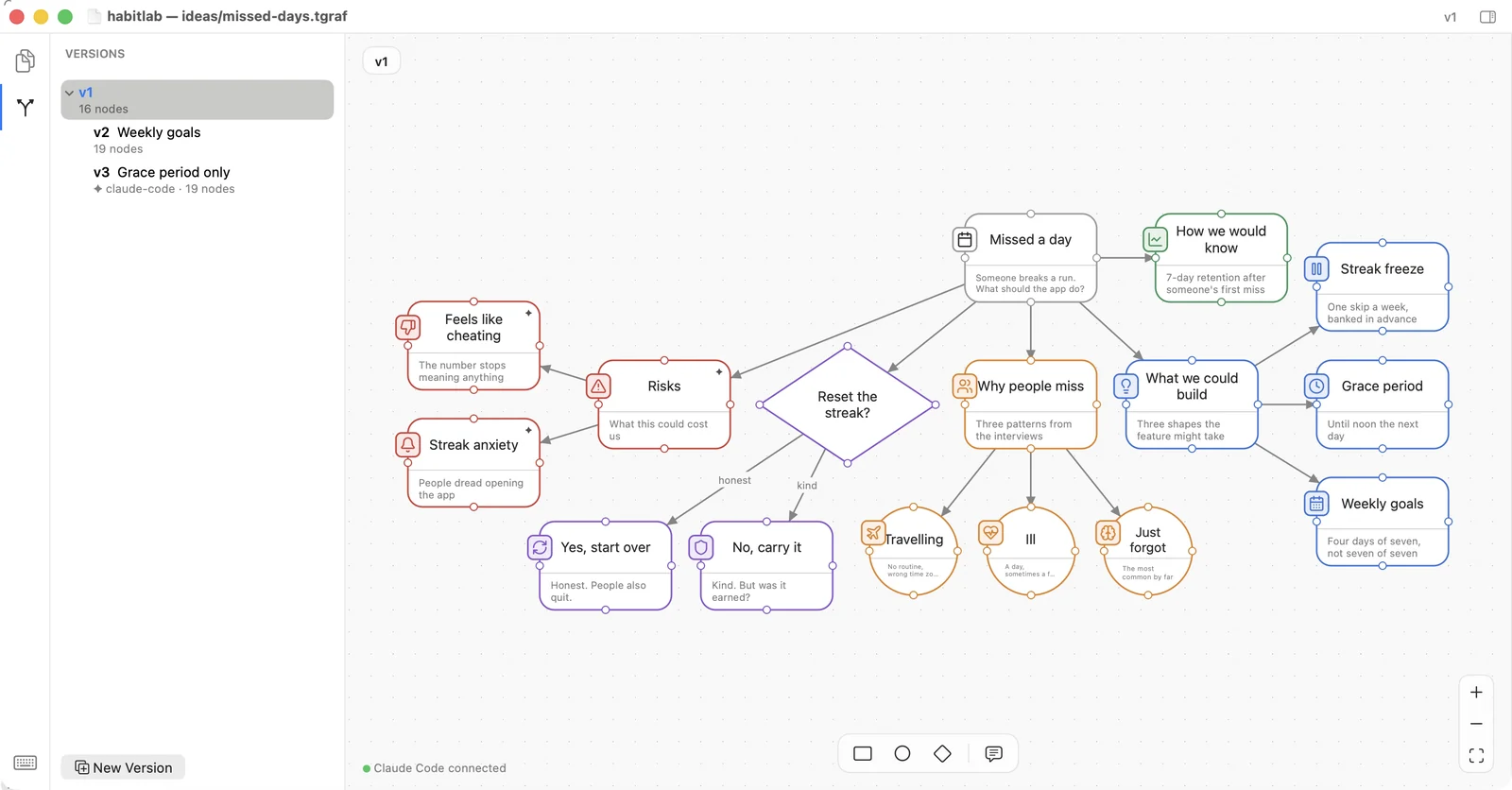
You can always see what you didn’t draw.
A node the assistant made carries a small ✦. So does a version it created. Nothing is hidden behind a diff — the provenance is on the canvas, where you are looking.
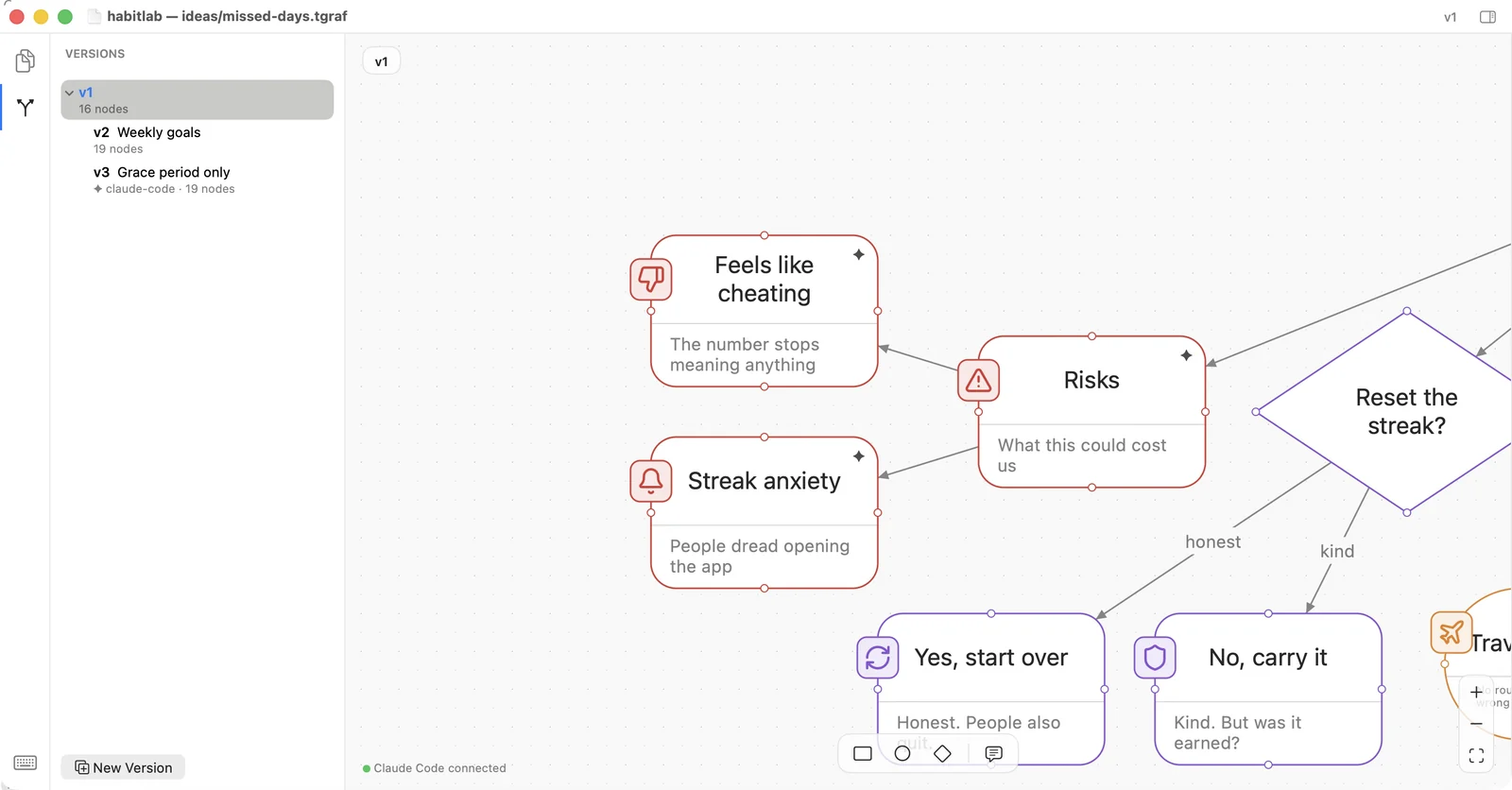
Rectangle, circle, diamond. Placed where you put them.
Thinkograf is a thinking tool, so it does not tidy up after you. There is no grid snapping and no automatic layout. A node sits where you drop it, at the size you gave it.
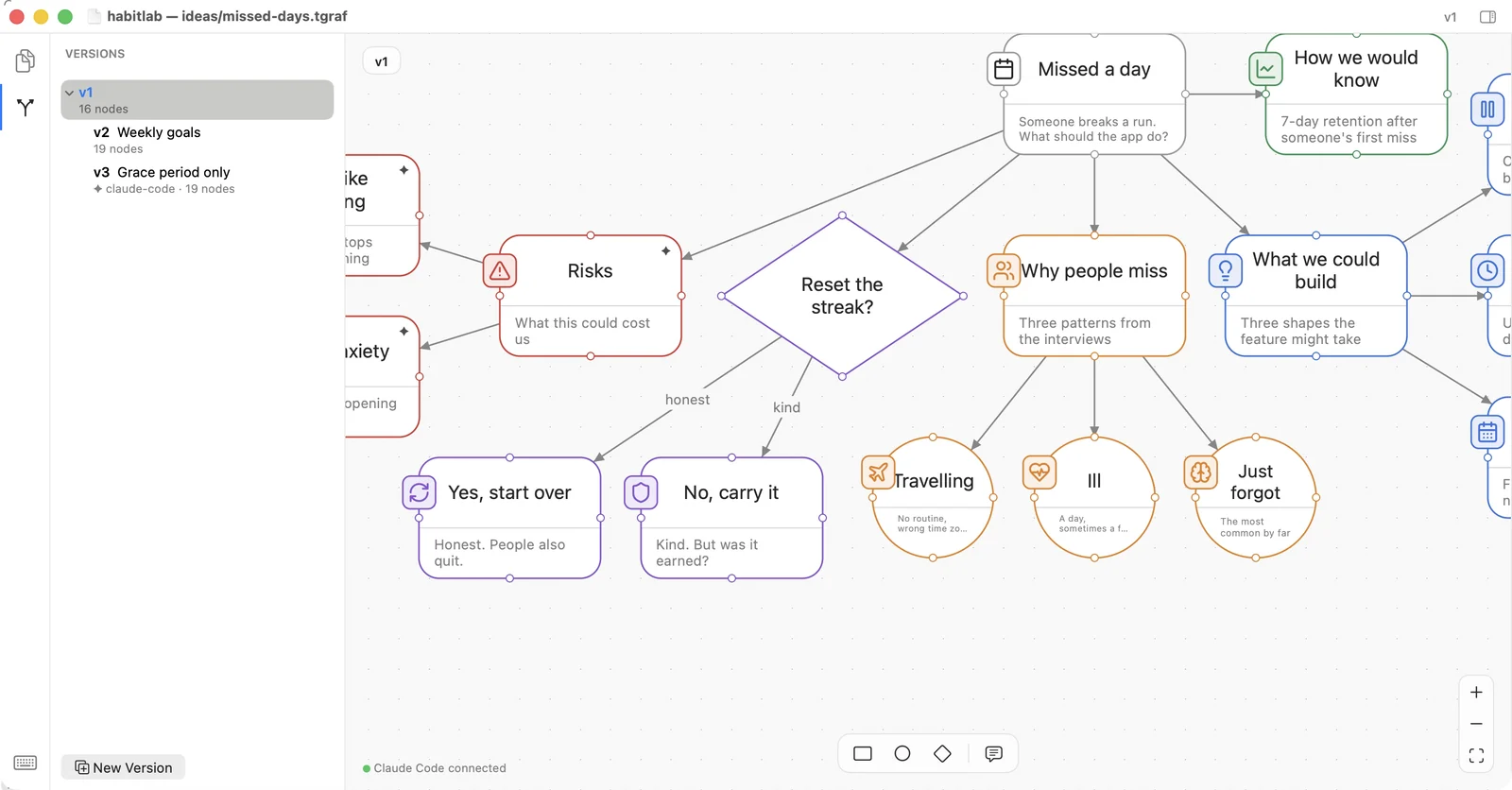
Colour arrives by itself, and you can overrule it.
Give a node a category — Risk, Idea, Open question — and Thinkograf colours it and keeps the legend. When you want a particular colour instead, the Style tab has one.
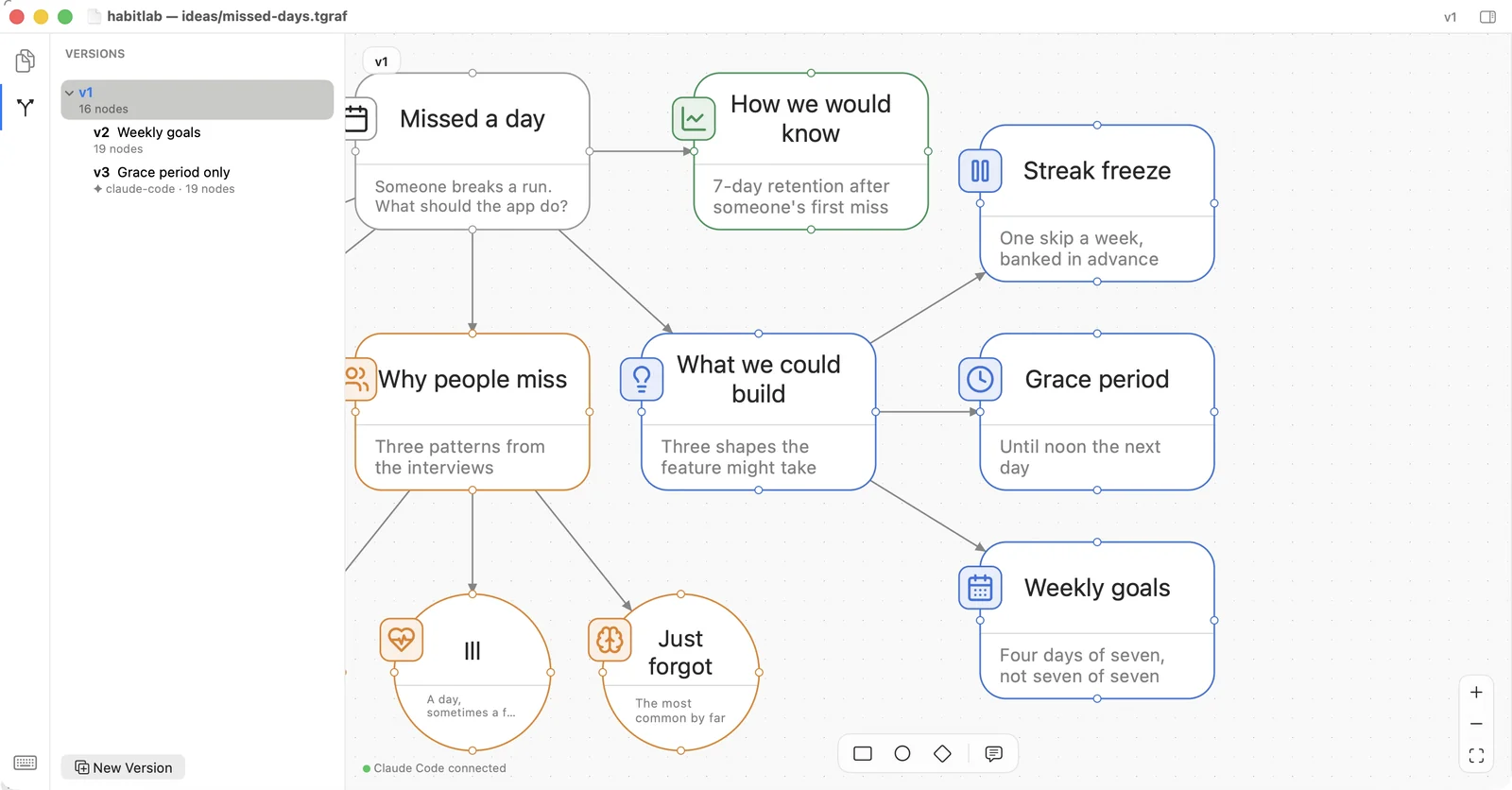
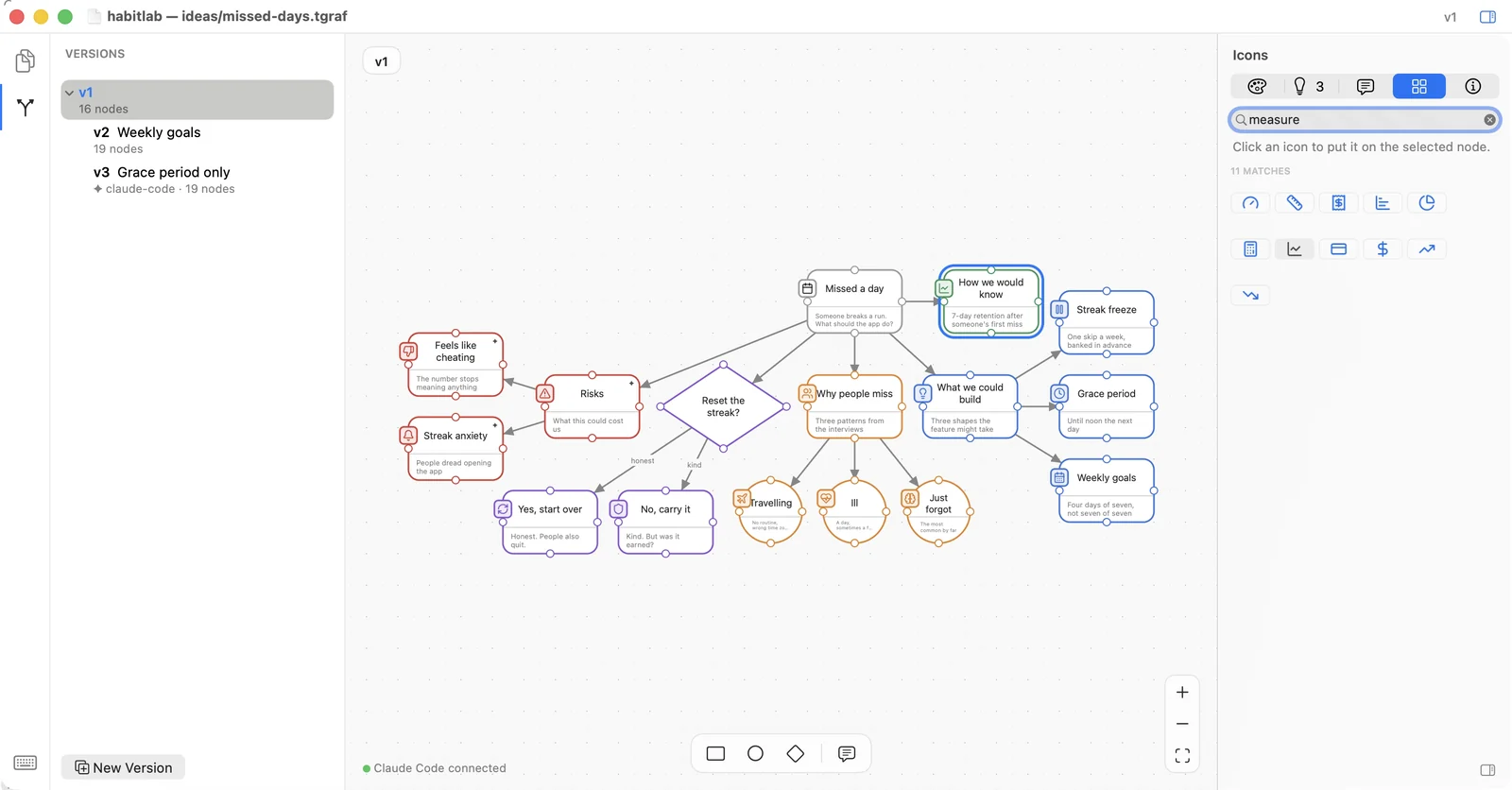
Found by the word for the thing.
Type what the node is about rather than what the icon is called. The library searches meaning, so "money" finds the ones you meant and your assistant can pick them the same way.
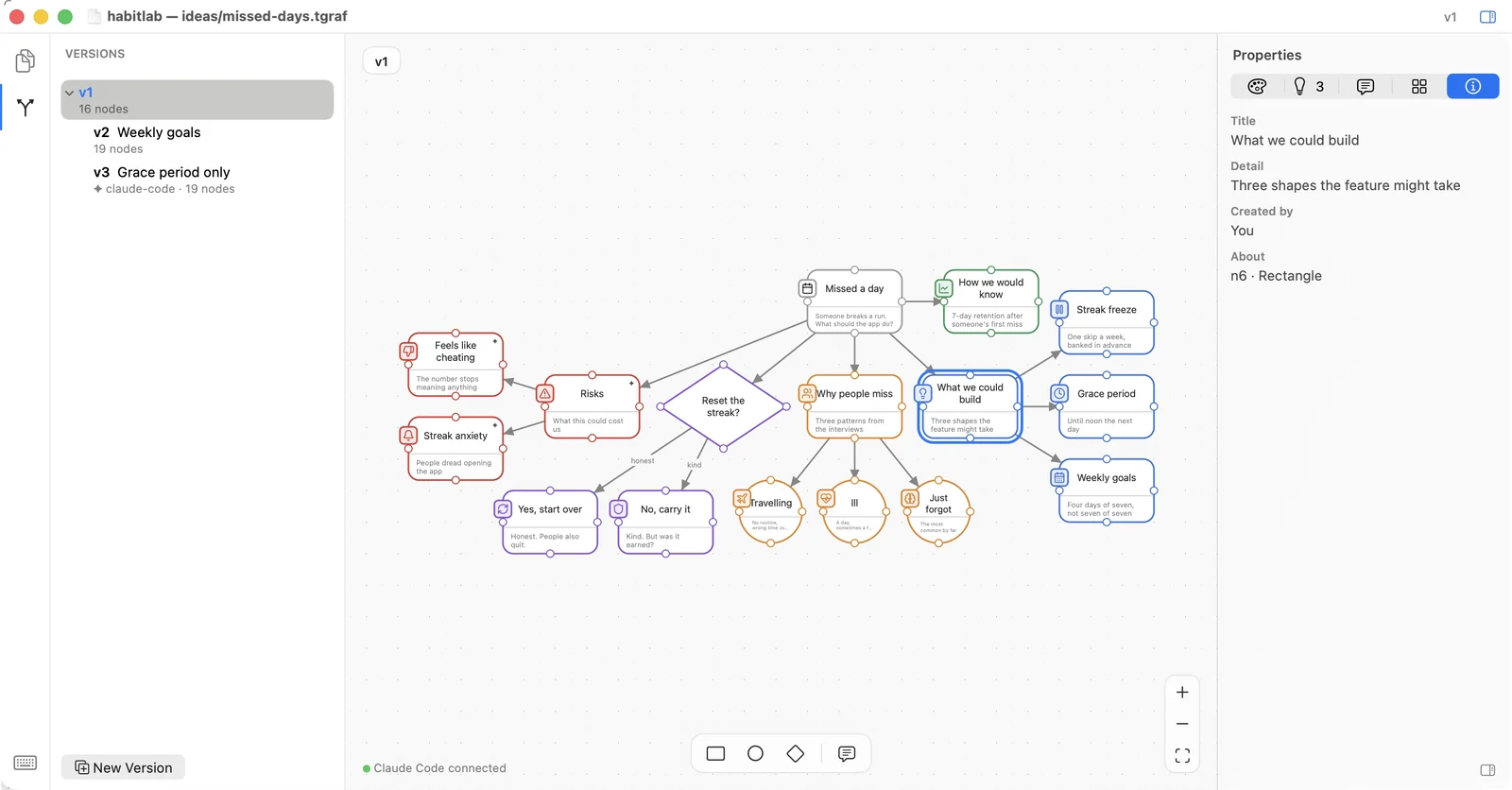
One panel, and it follows the selection.
Text, detail, category, colour, shape and icon for whatever is selected. The shortcut card beside it changes with what you have picked, so the key you want is on screen.
Ideas that wait to be let in.
When you want options rather than a finished drawing, your assistant can offer nodes instead of adding them. They sit in the library until you accept them, so the canvas stays yours.
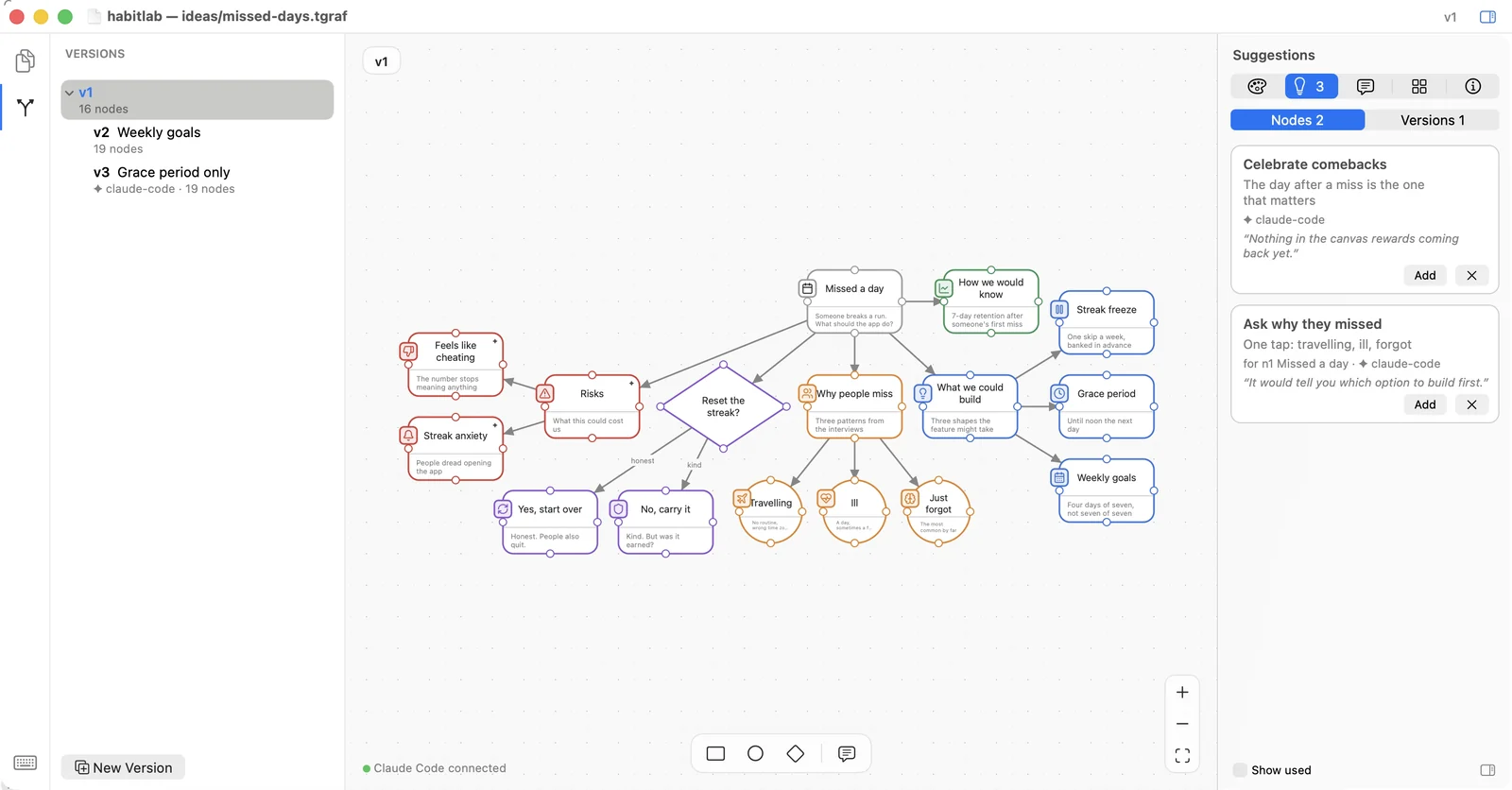
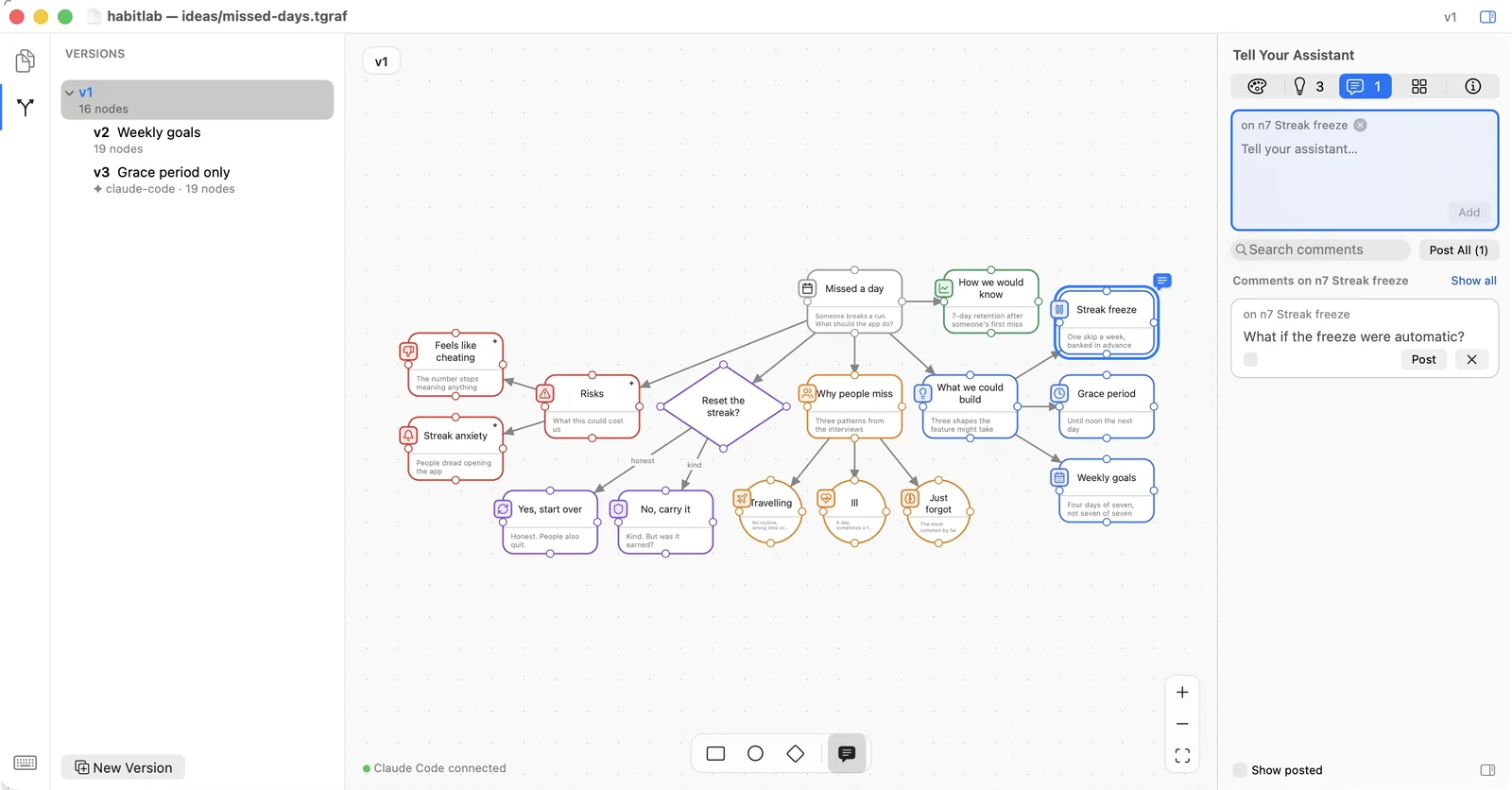
Leave a note on a node. Get an answer in place.
Pin a comment where the question actually is and post it. Your assistant reads it with the node it is attached to, and answers on the canvas — not in a chat window somewhere else.
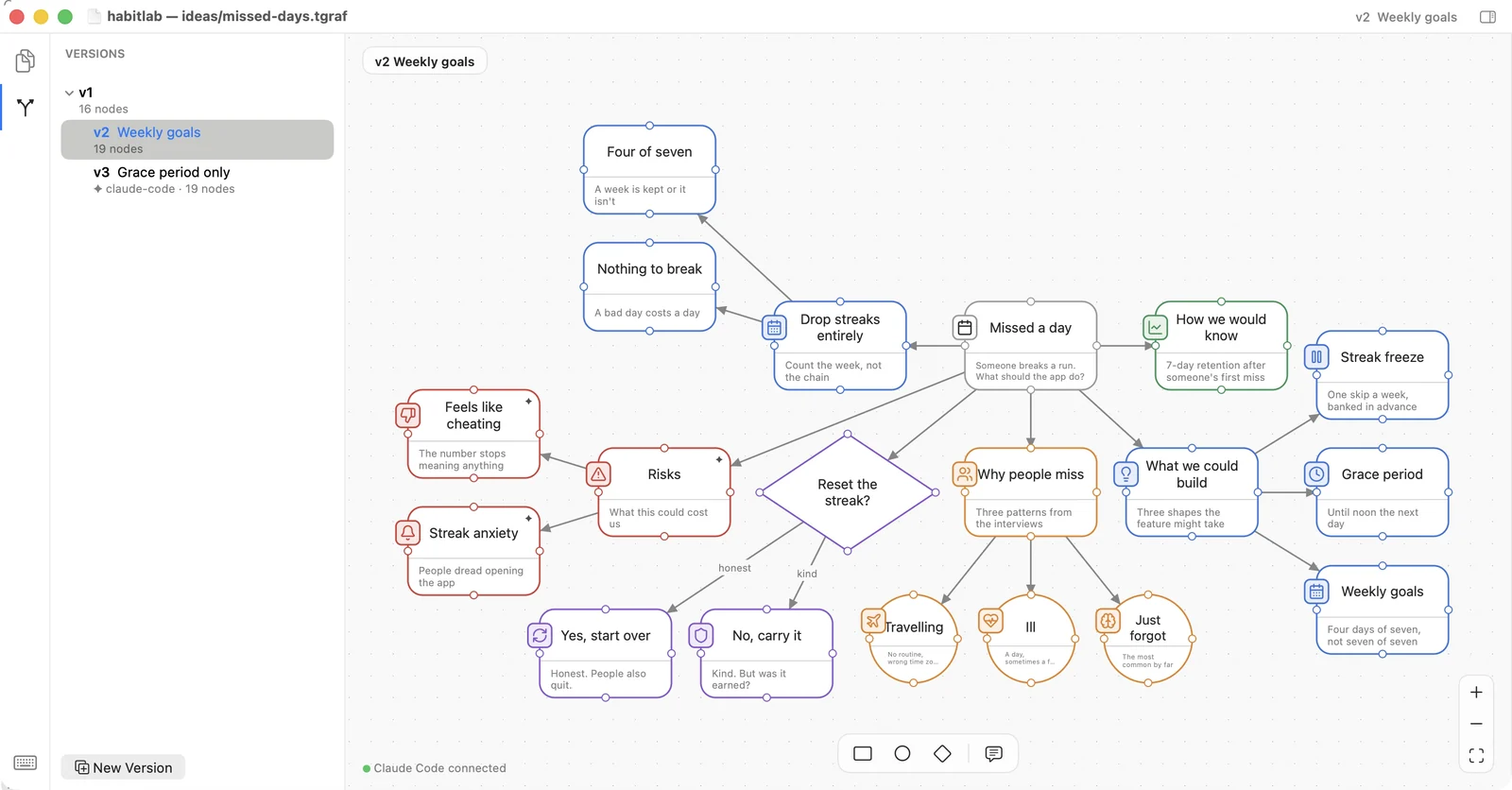
A file is a list of directions, not a stack of drafts.
Copy a version to take the idea somewhere else, or start one blank for a fresh run at it. The panel shows them as a tree, so you can see which came from which.
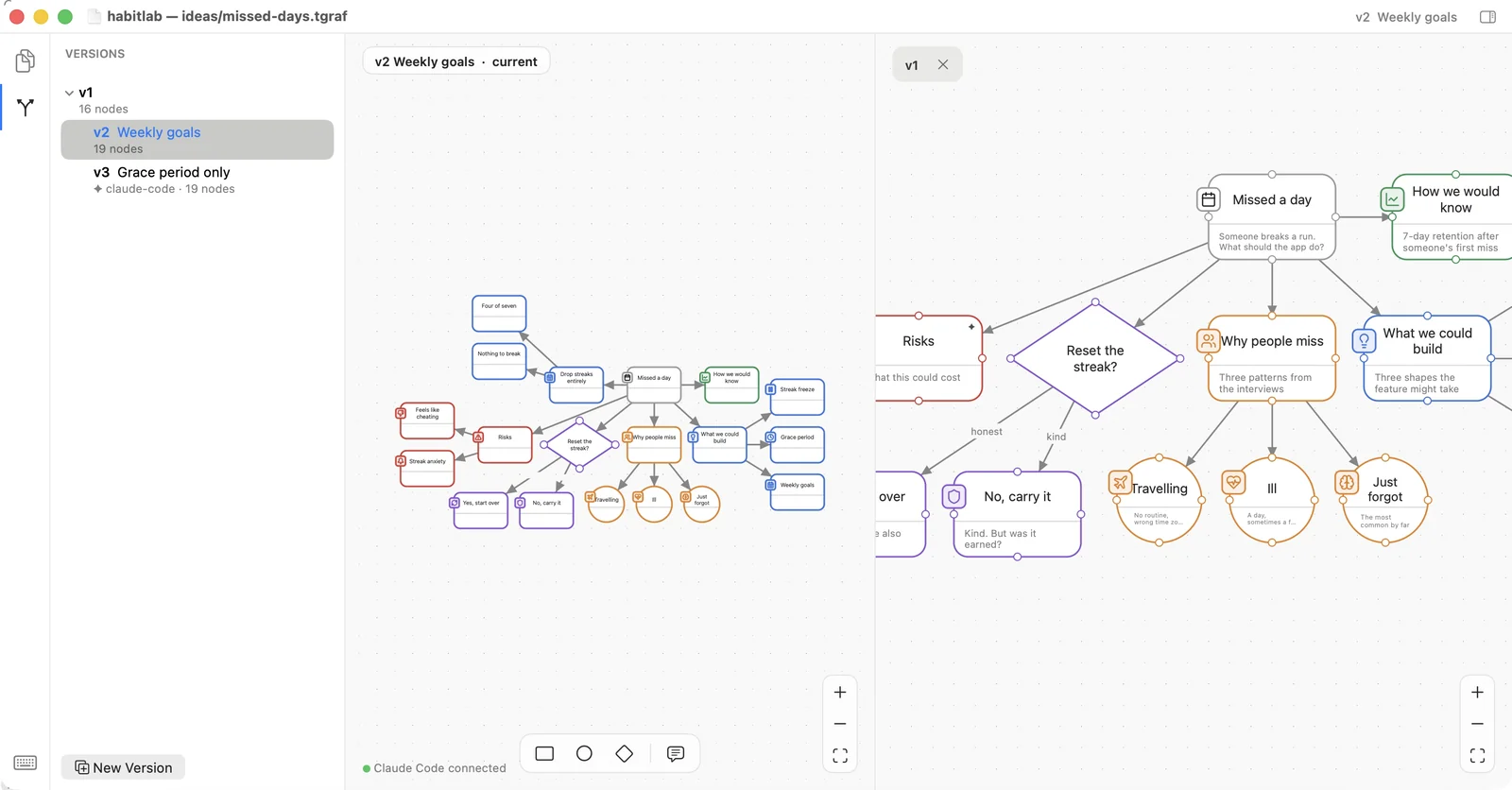
Two versions, side by side, each framed on its own.
Open a second version in a split and look at both at once. Each half keeps its own camera, so you can hold one steady while you move around the other.
Every canvas is a file where the code is.
A .tgraf file lives in the project, not in an account. It is listed by its path, it opens from Finder, and it goes into the same commit as the change it explains.
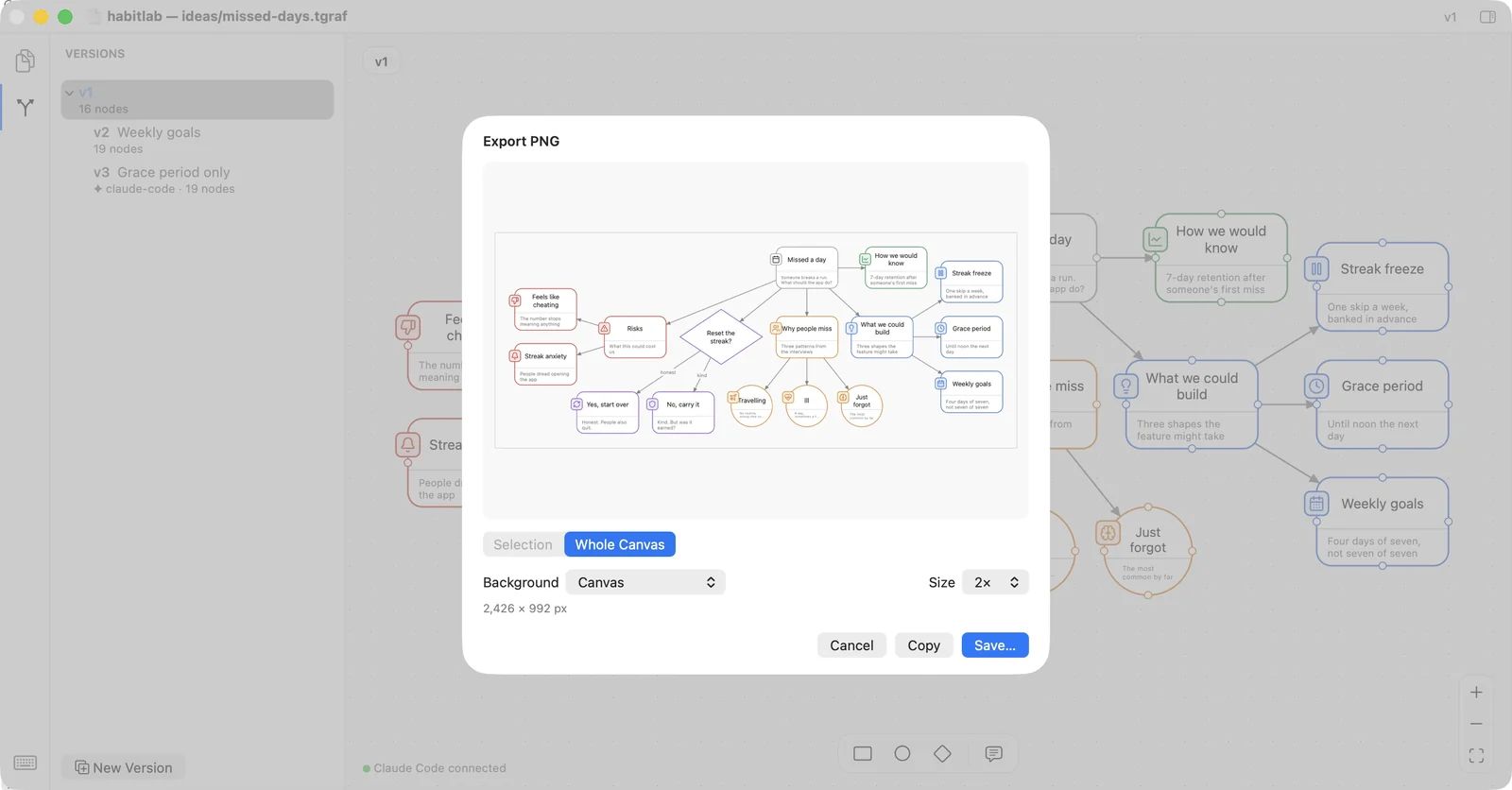
A picture, when something has to leave the canvas.
Export to PNG with a preview of exactly what you will get, for the pull request, the deck or the wall.
See it do all of that.
The walkthrough runs through every one of these in eighty seconds, recorded from the app.